InVideo vs Canva: Honest Review and Guide 2026
InVideo vs Canva, which AI video tool comes out on top?
If you need to generate a complete video—with script, voiceover, and subtitles—directly from a text prompt, InVideo AI is your go-to choice. However, if you prefer an all-in-one platform to handle posters, presentations, and basic video editing simultaneously, Canva Video Editor is the better option.
In my view, Canva AI and InVideo AI take completely different approaches. Canva transforms video editing into an extension of graphic design, while InVideo AI turns video creation into an automated assembly line.Today, I will share my thoughts on using these two tools.
InVideo vs Canva: Feature and Capability Comparison
Before diving deep, I compiled a feature comparison table for quick reference:
| Feature Dimension | Canva Video Editor | InVideo AI |
| Product Positioning | Layer and template-based drag-and-drop editor | Prompt-driven automated AI video generation agent |
| Core Strengths | Unified brand visuals, rich stock library, seamless connection with design | Automated scripts & voiceovers, B-roll matching, voice cloning |
| AI Model Integration | Integrated with Google Veo-3, etc. | Integrated with OpenAI Sora 2 and Google Veo 3.1, etc. |
| Free Plan Limits | 1080p export with no watermark, 5GB storage, basic templates | 2 mins/week AI generation, branded watermark, restricted features |
| Pricing Tiers | Pro: $14.99/mo ($6.50/mo billed annually); Business: $20/user/mo | Plus: $25–$28/mo; Max: $48–$60/mo (both include fixed credits) |
| Billing Mechanism | Monthly subscription with unlimited exports (AI single clip capped at 8s) | Credit-based system; generating previews and revision prompts cost credits |
| Export Formats | Up to 1080p MP4, no bitrate control, 4K not supported | Up to 1080p/4K (plan-dependent), MP4 export supported |
| Subtitles & Voiceover | Auto-subtitles, limited audio adjustment, no voice cloning | Dynamic subtitles, multi-language AI voiceovers, voice cloning |
| Stock Library & Licensing | Genuine image/video/music library, YouTube copyright binding | 16M+ iStock/Storyblocks library with automatic AI matching |
| Team Collaboration | Multi-user real-time editing, comments, brand kit sharing | Geared toward single accounts; team plans share credits and projects |
| Ideal Target Audience | Social media managers, small business owners, design-heavy creators | Faceless channel creators, cross-border e-commerce sellers, ad media buyers |
InVideo vs Canva Hands-On Comparison: Workflow & Brand Consistency
Workflow and Production Efficiency: InVideo vs Canva
When it comes to workflow efficiency and automated generation, InVideo AI holds a clear advantage over Canva Video.
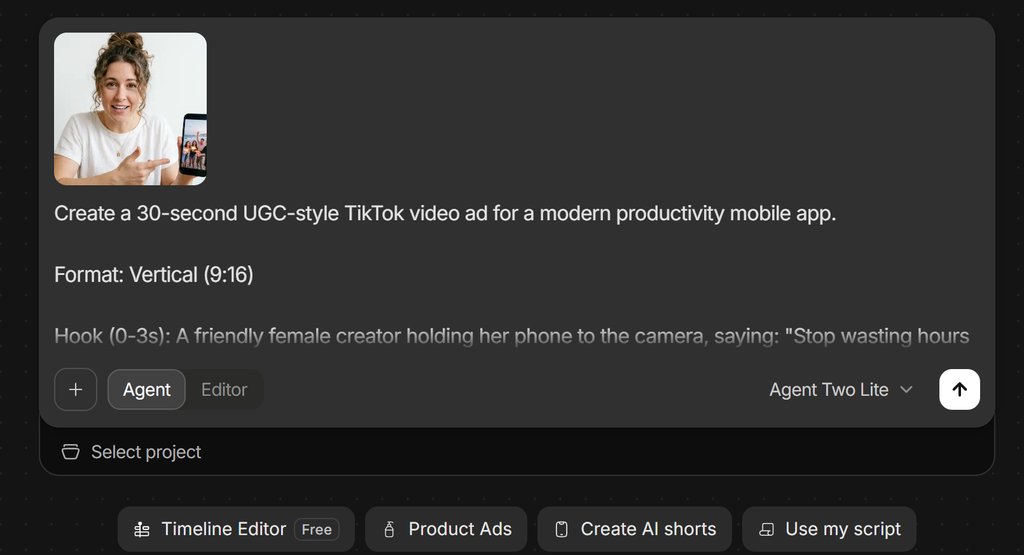
To test their real-world efficiency, I ran an experiment with identical requirements: producing a 15-second Instagram Reels promo video. In Canva, I had to manually pick a template and adjust the audio rhythm and subtitle styles, taking about 18 minutes.
In contrast, after I entered product features and target audience descriptions into InVideo AI, the system generated a first draft with script, voiceover, and captions in just 2.5 minutes. If you scale production to multiple short videos per month, InVideo AI proves to be the far more efficient option.
Brand Consistency and Visual Control: Canva vs InVideo
In terms of brand visual consistency and layout control, Canva Video is clearly superior to InVideo AI.
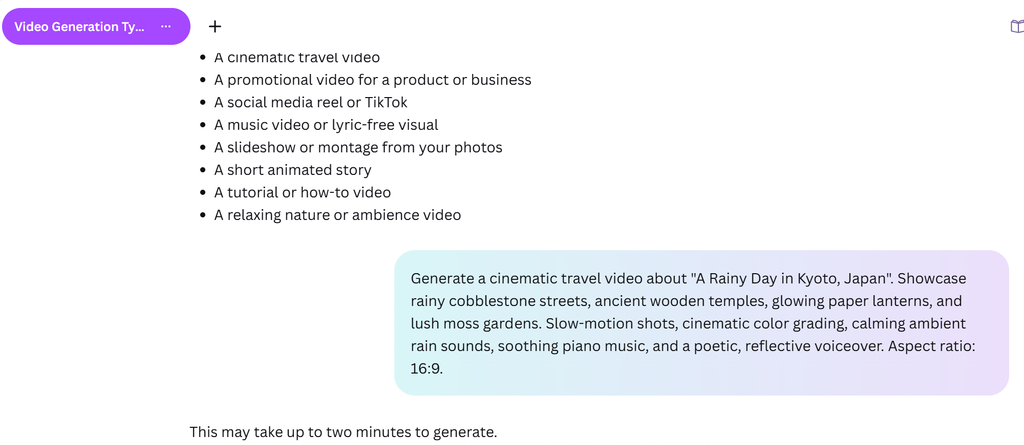
B-roll footage generated by InVideo AI can occasionally deviate from expectations. For instance, when prompting for “handcrafted knitting details,” the system might pull generic office scene footage instead.
The key difference between Canva AI and InVideo AI lies in Canva’s comprehensive Brand Kit feature. This allows you to apply enterprise standard colors, custom fonts, and logos to every video frame with a single click.
For teams prioritizing strict brand visual standards, Canva’s layer management and timeline provide precise control over element placement. This level of predictability and control is difficult for InVideo AI to match.
InVideo vs Canva: Core Capability Summary
| Evaluation Dimension | Canva Video Editor | InVideo AI |
| Efficiency & Production Time | 35–50 minutes per video | 2–6 minutes per video |
| Automation Scope | Basic template applying; all other editing steps require manual assembly | Fully automated scripts, voiceover synthesis, B-roll matching, and captions |
| Brand Element Control | Extremely high (full Brand Kit, standard color and font locking) | Low (inherits basic colors and logo only, no strict control) |
| Fine-Tuning Granularity | Pixel-level drag-and-drop and layer formatting with precise manual control | Relies on natural language prompts; complex tweaks occasionally fail |
| Visual Asset Accuracy | Hand-picked by humans; 100% alignment between visuals and copy | Relies on AI retrieval algorithms; B-roll footage occasionally strays |
| Cost & Billing Structure | $14.99/mo flat subscription with unlimited exports and edits | Credit-based from $25/mo; preview generations and prompt edits cost credits |
Canva vs InVideo AI: Real Drawbacks
Canva Video Editor Pros and Cons: Key Pain Points
I noticed that the Canva Video Editor runs entirely within the web browser. When a video exceeds 5 minutes or contains many timeline assets, the player often experiences audio-video desync and lag.
In addition, Canva does not support LUT imports, green screen chroma keying, color correction, or dynamic speed ramping. The export resolution is capped at 1080p MP4, without options to adjust bitrate or export uncompressed files.
Furthermore, its AI-generated video clips are limited to a maximum of 8 seconds. Pro accounts receive only 5 AI video generations per month, making continuous narrative storytelling difficult.
InVideo AI Limitations: Community Pitfalls and Credit Costs
While browsing community discussions, I found that InVideo AI’s credit mechanism draws significant concern. Because editing prompts also deduct credits, repeated regeneration due to AI misunderstandings rapidly exhausts monthly quotas.
According to official terms, once credits are consumed, refunds are generally not provided—even if you are unhappy with the result.
Additionally, the AI-generated copywriting tends to sound generic and usually requires manual rewriting. During close-up avatar shots, slight lip-sync errors can also occur occasionally.
InVideo vs Canva Limitations Overview
| Product | Officially Claimed Features | Real-World Limitations |
| Canva Video | All-in-one online video editor | Timeline lags on long videos; no 4K export; no green screen or color grading |
| InVideo AI | One-click video generation from prompts | Revision prompts burn credits; misunderstood prompts add costs; unused credits do not roll over |
InVideo vs Canva FAQ: Frequently Asked Questions
InVideo vs Canva for Faceless YouTube Shorts: Which Is Better?
For creators running faceless channels, InVideo AI is significantly better suited. It automatically generates scripts, voiceovers, captions, and matching visuals, making it ideal for batch scheduling.
In contrast, Canva requires manual asset sourcing and assembly, resulting in lower efficiency.
Can Canva Video Editor Replace CapCut or Premiere Pro?
No, it cannot. Canva Video is positioned as a lightweight graphic and video editor that lacks professional tools like multi-track audio mixing, motion tracking, speed curves, and 4K export.
For complex video editing, professional tools like CapCut or DaVinci Resolve remain necessary.
InVideo AI Credit System: How Pricing and Credits Work
InVideo AI credits are issued monthly based on your plan, with different models and generation modes consuming varying credit ratios.
Unused credits expire at the end of each billing cycle and automatically reset to zero rather than rolling over.
Is Canva Pro Worth It for Video Editing Alone?
If your sole requirement is video editing, dedicated software like CapCut offers a deeper user experience.
However, if you simultaneously need to create cover graphics, social media posters, and presentations, Canva Pro offers superior overall value.
InVideo vs Canva Verdict: Which AI Video Editor Should You Choose?
- Choose Canva Video Editor if: You need to handle graphic design and social short videos within a single system while keeping costs predictable.
- Choose InVideo AI if: You are a faceless channel creator or ad media buyer focused on maximum output efficiency who wants to convert prompts directly into finished videos.
- Skip Both and Look Elsewhere if: You require precise timeline editing, professional color grading, green screen keying, or long-form video production. In those cases, opt for professional editors like CapCut, DaVinci Resolve, or Descript.
Still exploring? Check out our other related comparisons below:
HeyGen vs InVideo Review: Which AI Video Platform Best Suits You?
Revid vs HeyGen: AI Video Generator Honest Review
HeyGen vs Arcads: Review After Months of Use 2026
Arcads vs MakeUGC : Best AI UGC Ad Generator Review 2026
Creatify vs Arcads 2026: Practical Review in My Workflow
I also have an article reviewing Canva’s image design features: