
InDesign vs Canva: Practical Review 2026
By Sophie Martin , Edited & Published By Toolvs Team
InDesign vs Canva, which is the better design tool in your work ?
If you need to lay out multi-page corporate brochures or handle high-precision commercial printing, purchase Adobe InDesign directly. If you only need to quickly apply templates to produce social media marketing posters and demand extremely fast multi-size outputs, purchasing Canva Pro is the most efficient route.
Hi I’m Sophie, a graphic designer currently responsible for our company’s print media creation. Canva and Adobe are tools that we, as designers, cannot live without. Today, based on my practical experience, I will share their differences, limitations, and how to choose.
Canva vs InDesign: Quick Comparison of Core Specs
| Comparison Dimension | Adobe InDesign | Canva |
|---|---|---|
| Product Positioning | Industry-standard professional layout and publishing software | Visual communication and social media execution tool for non-designers |
| Main Scenarios | Books, product brochures, academic manuals, demanding print materials | Social media posters, infographics, marketing newsletters, quick slide decks |
| 2026 Latest Pricing | Single App: $22.99/mo (annual, paid monthly) or $263.88/yr (prepaid)<br>Creative Cloud All Apps: $59.99/mo (annual, paid monthly) | Canva Pro (Individual): $18/mo or $144/yr<br>Canva for Business: $25/user/mo or $250/user/yr |
| Free Tier Limits | Only a 7-day free trial; inaccessible once expired | Permanently free, 250k+ templates, 5GB storage, low AI credits |
| AI Creative Power | Powered by Adobe Firefly (Generative Expand, Text to Image) | Powered by Magic Studio 2.0 (Conversational Design, One-click Resize) |
| Multi-page & Flowable Layout | Exceptional. Supports Flex Layout (flowable layout) and global parent page control | Basic. Only supports stacked single-page canvases with no global style linkage |
| Print Compliance | Exceptional. Supports CMYK spot colors, Preflight, and vector compliance | Basic. Large solid color areas are prone to color shifts; lacks advanced vector handling |
| Collaboration | Supports Cloud Docs and Share for Review | 100% web-based; supports multi-user real-time collaboration and brand control |
| Hidden Pitfalls | “Annual plan, paid monthly” early cancellation fee: 50% of the remaining contract.<br>Early Windows versions of the new release suffer from lag and spinning wheels. | Per-user billing: Pro is single-user only; adding members forces upgrade to Business.<br>AI credit caps; exceeding them requires buying a $100/mo AI Pass. |
| Best For | Senior graphic designers, layout experts, book publishers | Global e-commerce sellers, social media operators, solopreneurs, marketers |
Adobe InDesign vs Canva: User Experience
1. Long Document Layout
Adobe InDesign holds a massive advantage in long multi-page manuals and strict print-grade typesetting.
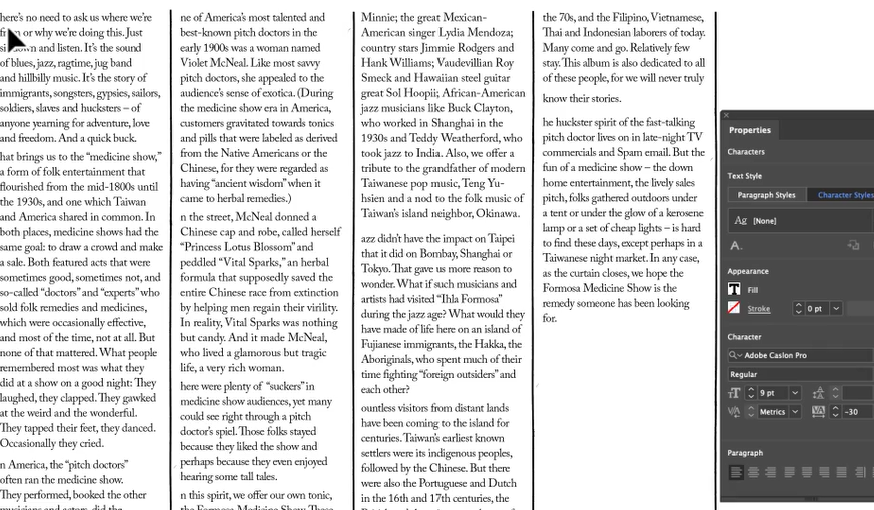
I previously imported a 60-page corporate hardware product manual into InDesign, which contained a large volume of MathML formulas and high-definition product images. Thanks to the Flex Layout feature introduced in the 2025 version, I only needed to configure alignment and spacing rules in the main container. Later, when the German and French translations saw a sudden surge in text length, all image frames and text areas auto-flowed intelligently. This completely saved me from the manual labor of adjusting positions page by page.
In contrast, handling a document over 30 pages in Canva is a painful chore. Canva lacks multi-level style linkages based on “parent pages” and “global paragraph styles” like InDesign. Changing a single text string can break the formatting across dozens of subsequent pages, forcing you to manually stretch and adjust text boxes one by one. Furthermore, under the European Accessibility Act (EAA) standards for accessible book layouts, InDesign supports exporting MathML directly as tagged accessible SVG vector graphics, whereas standard PDFs exported from Canva cannot pass accessibility compliance reviews.
2. Marketing Material Design
Canva is significantly faster for daily social media marketing, high-frequency ad posters, and multi-size asset production.
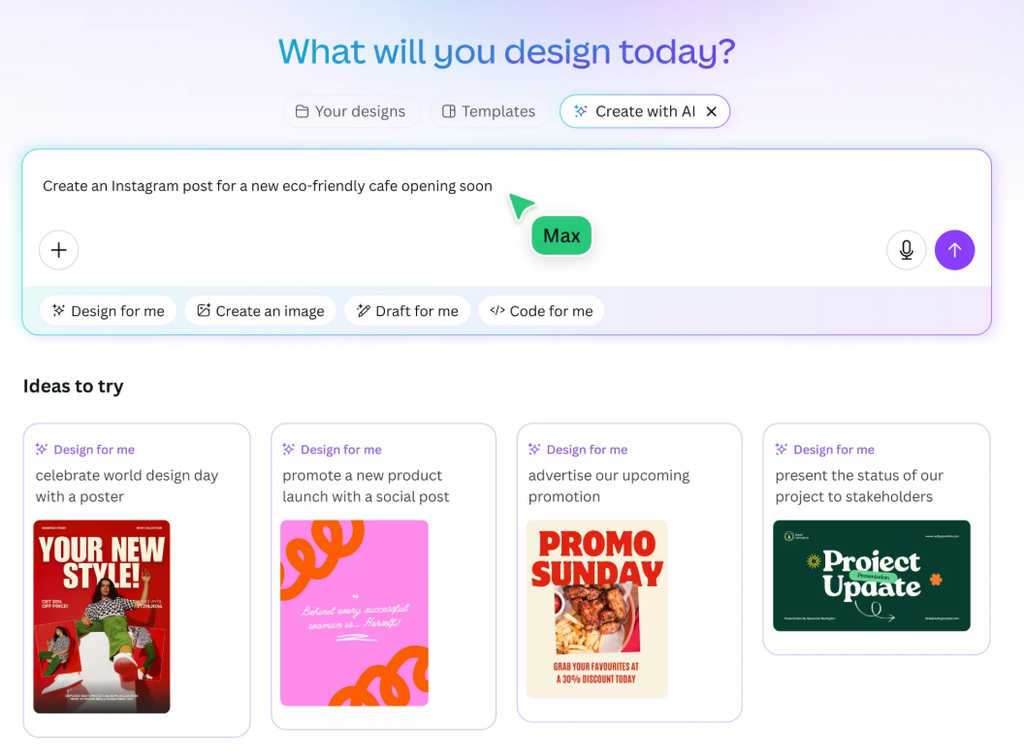
If you need to quickly produce 15 social media posters of different sizes for a summer mega sale, Canva 2026 lets you design just one master version. Click Magic Switch, and the AI will auto-generate the remaining sizes for various channels within 45 seconds. The positions of the copy and key visuals are reasonably preserved, requiring almost no secondary editing. Together with the pre-configured Brand Kit, marketing and copy teams with no design background can apply standard corporate VI colors, fonts, and logos in one click to deliver a full set of assets instantly.
However, handling multi-channel assets in InDesign is highly tedious. You must manually create 15 individual pages or set up its overly complex Liquid Layout rules and Alternate Layouts. Additionally, InDesign does not have a high-quality, royalty-free stock library built in. Even a minor text tweak or image replacement requires a designer to open the source file locally, modify it, and repackage/re-export it, severely dragging down the marketing team’s response speed.
3. Generative AI Capabilities
In generative AI tools, InDesign displays a higher technical ceiling, while Canva excels at sparking initial draft ideas.
InDesign’s Generative Expand is an incredibly useful feature. When a client sends a landscape product photo but I need it as a portrait cover for a brochure, I can simply expand the image container. Firefly AI seamlessly fills in the background, such as the sky or road, without needing to jump to Photoshop for manual compositing. However, in real print projects, I discovered a hidden bug: SVG graphics exported from InDesign’s MathML panel are restricted to the RGB color space. When applied directly to print layouts, black formulas turn into four-color rich black during color separation, making the printed text blurry or ghosted. Ultimately, designers still need to manually correct this.
Conversely, Canva 2026’s Magic Studio 2.0 focuses on conversational design. You can describe your ideas, and it quickly outputs an editable draft with layers and basic layouts. This is fantastic for early brainstorming and rapid concept proposals, boosting work efficiency. However, these AI-cobbled posters often look mediocre and repetitive. If you use them directly in highly competitive global marketing campaigns, you risk brand homogenization and “design clashes”.
Quick Scorecard Comparison
| Evaluation Metric | InDesign 2025/2026 | Canva 2026 | Winner |
|---|---|---|---|
| Long Document Layout Precision | Perfect (Flex Layout adaptive, native MathML support) | Poor (No global linkage, lacks auto-layout logic) | Adobe InDesign |
| Multi-size Social Media Publishing | Slow (Requires manual Alternate Layout configuration) | Extremely Fast (Magic Switch one-click sync generation) | Canva |
| Generative AI Usability | Rigorous (Firefly Generative Expand with pixel-level alignment) | Fast (Magic Studio outputs are mediocre, prone to design clashes) | Adobe InDesign |
The Real Limitations of Canva vs InDesign
| Limitation Dimension | Adobe InDesign Limitations | Canva Limitations |
|---|---|---|
| Pricing Traps | “Annual plan, paid monthly” subscription trap; 50% early termination fee. | Scrapped the cost-effective old Teams plan to force high-tier per-user Business billing. |
| Performance Bottlenecks | Early Windows versions run extremely sluggishly. | AI credits drain rapidly; exceeding them forces a $100/mo AI Pass upgrade. |
| Asset Security | Relies on local packaging; missing source links or assets trigger layout errors. | Cancelling Pro locks down historical works containing Pro elements from being downloaded. |
InDesign’s Limitations
The biggest limitation of Adobe is its “annual plan, paid monthly” cancellation clause. Many beginners and freelancers buy this plan thinking it is a flexible monthly subscription to save money. However, if you want to cancel mid-way because a project ended, Adobe’s system will force a pop-up to charge a 50% early termination fee of the remaining contract, which can run up to hundreds of dollars.
Canva Pro’s Limitations
This year, Canva completely removed its highly cost-effective old 5-user Teams plan, forcing a transition to the per-seat Business billing model. The moment you add a colleague to collaborate on a project, the system quietly upgrades your account, multiplying your annual bill instantly.
An even more frustrating issue is Canva’s “Download Trap”. When you cancel your Canva Pro subscription due to budget constraints and downgrade to a free account, you cannot download your own original designs created during your Pro period if they contain even a single Pro-exclusive frame, sticker, or Pro font. You are locked out of downloading or editing them unless you resubscribe or spend hours manually replacing hundreds of elements with free alternatives. Your accumulated design assets are essentially held hostage.
FAQ: InDesign vs Canva

Q: Can Canva completely replace Adobe InDesign in 2026?
A: No. In scenarios involving strict industrial specifications and large-scale publishing, Canva cannot replace InDesign. Although Canva added a Docs-like long-document collaboration feature, it cannot handle print essentials like CMYK color separation, spot colors, bleed, or overflow Preflight checks. Additionally, under the strict accessible book layout standards enforced in 2025/2026 by the European Accessibility Act (EAA), InDesign’s Page Markers, MathML export, and EPUB accessibility metadata offer irreplaceable compliance advantages. For serious book publishing, corporate bids, and print design, InDesign remains the undisputed ruler.
Q: Which tool is cheaper for scaling teams?
A: As team size grows, Adobe’s total cost can actually be lower than Canva’s. Canva Business (formerly Teams) enforces strict per-user pricing. For a team of 10 designers and marketers, you will pay up to $2,500/year for Canva. In contrast, an Adobe Creative Cloud team subscription provides full professional tools like InDesign, Photoshop, and Illustrator, while also including the free Adobe Express suite for lightweight cloud collaboration. This ensures senior designers have precise tools while allowing marketers to co-edit, making the marginal cost of long-term expansion much more reasonable.
Q: What is the real limitation of Canva’s AI credit system?
A: Canva places a hidden credit ceiling on its AI features. The Magic Studio 2.0 tools consume credits very quickly in daily use. Pro individual subscribers have a hard monthly limit on advanced AI generation, expanding, and background removal. Once you deplete your credits during high-frequency ad generation, you must pay an extra $100/month for the official AI Pass add-on, pushing operating costs far beyond initial budgets.
Ultimate Selection: When to Choose InDesign vs Canva?
- Choose InDesign if: You need to produce rigorous, long-form print books, highly compliant e-books, academic paper manuals, or demand perfect kerning control and commercial CMYK spot-color printing.
- Choose Canva if: You are a solopreneur, social media operator, or a small team with a tight budget who needs to produce high volumes of social media posters and light marketing documents with extreme speed and a low learning curve.
- Skip Both and Look Elsewhere if: You want to completely break free from big-tech subscription fees or need high-definition layout software with iPad touch support. I highly recommend Affinity Publisher, which is a one-time purchase and offers highly professional layout features. For lightweight, digital interactive UI design, Figma is the better choice.